The Complete Guide to DoorDash Menu Photos That Get More Orders
Your DoorDash photos might be the reason orders are slow. Learn the exact photo specs, proven techniques, and common mistakes so your menu stands out and converts.
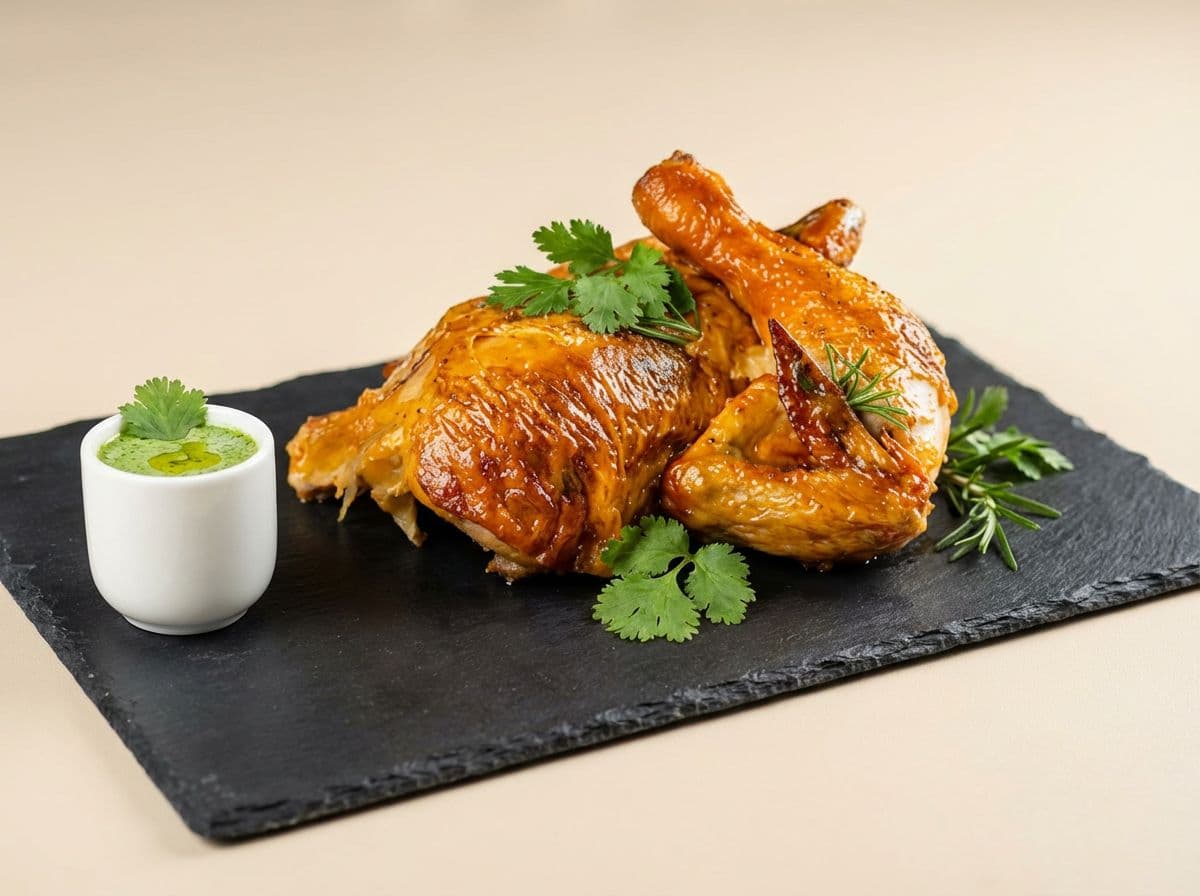
The Complete Guide to DoorDash Menu Photos That Get More Orders
You are on DoorDash. You have great food, solid reviews, and competitive pricing. But orders are not where they should be.
Before you start running promotions or dropping prices, look at your listing the way a hungry customer does. Open DoorDash, find your restaurant, and scroll through your menu. What do your photos say about your food?
If the answer is "not much" -- or worse, if most items have no photo at all -- you just found the most fixable problem in your business.
DoorDash's own data backs this up: menus with item photos see up to 44% more monthly sales than menus without them. Restaurants with high-quality photos see up to 30% higher sales on average. And 38% of customers say they use menu photos to decide whether to try a new restaurant.
Your food is already great. This guide will make sure your DoorDash photos show it.
Quick Reference: DoorDash Photo Requirements
Before diving into technique, here are the specs your photos need to meet to get approved on DoorDash.
RequirementSpecification
Minimum resolution
1400 x 800 pixels (menu items)
Recommended aspect ratio
16:9 for menu items, 1:1 (square) for logos
File format
JPG, JPEG, or PNG
Maximum file size
16 MB
Lighting
Clear, natural-looking light -- no harsh flash
Background
Clean and neutral -- no busy patterns
Content rules
No text overlays, no faces, no partially eaten food
Review time
Typically 1 business day (up to 3-5 during busy periods)
DoorDash will reject photos that look blurry, have unnatural colors, show messy or unappealing food, or include visible plastic utensils. The main item must be clearly in focus. Hands and arms are allowed only when holding the item.
Keep these specs open when shooting. Nothing wastes more time than uploading a batch of photos and getting them all rejected.
What Makes a DoorDash Menu Photo Stand Out
Meeting the minimum requirements gets your photos approved. But approved and effective are two different things.
When a customer opens your restaurant on DoorDash, they are scanning -- not studying. You have roughly one second per item to make them stop scrolling and start wanting. Here is what separates the photos that convert from the ones that get ignored.
Bright, Natural Lighting
This is the single biggest difference between a professional-looking food photo and an amateur one. Natural light -- the kind that comes through a window -- makes food look fresh, colorful, and appetizing. Overhead fluorescent lighting makes it look flat. Camera flash makes it look harsh and washed out.
Shoot near a window during the day. If that is not possible, face the dish toward the brightest, most diffused light source you have. Avoid mixing light sources (window light plus overhead LEDs creates weird color casts).
The Full Dish, Front and Center
DoorDash recommends showing the entire dish, including sides and garnishes. Customers want to see what they are actually getting -- the full portion, the sides, the presentation. Extreme close-ups might look artistic, but they do not help someone decide whether to order a $16 entree.
Frame the dish so it fills about 70-80% of the image. Leave a small border of clean background around it.
Clean, Simple Backgrounds
A neutral background makes the food the star. A wooden table, a white plate on a light surface, a clean countertop -- these all work. Busy tablecloths, cluttered counters, and colorful backgrounds compete with the food for attention.
You do not need a professional studio. A clean section of counter and a plain cutting board can work as a backdrop.
Consistent Style Across Your Menu
When every photo on your menu looks like it was taken at a different time, in a different place, with a different phone, it signals "we do not take this seriously." Consistency builds trust. It tells the customer this is a professional operation.
Pick one setup -- same background, same lighting angle, same distance -- and shoot all your items in one session. This is one of the easiest ways to make your entire DoorDash listing look polished.
Color That Pops (Naturally)
Food photography is about making the viewer hungry. Warm tones, vibrant colors, and good contrast do that. Cool, blueish tones and low saturation do the opposite.
You do not need heavy editing. A slight increase in warmth, contrast, and saturation in your phone's built-in photo editor can make a noticeable difference. Just keep it realistic -- DoorDash will reject photos with unnatural colors, and customers will be disappointed if the food looks different when it arrives.
Step-by-Step: Upgrading Your DoorDash Menu Photos
You do not need a camera, a studio, or a photography degree. Here is a practical workflow any restaurant owner can follow.
Step 1: Set Up Your Shooting Station
Find the spot in your restaurant with the best natural light. This is usually near a large window, ideally with indirect sunlight (direct sun creates harsh shadows). Set up a clean surface -- a section of bar, a table with a plain surface, or a cutting board on a cleared counter.
Do this once, and you have a repeatable setup for every menu photo going forward.
Step 2: Prep the Dish for the Camera
Plate the dish exactly as it goes out to customers. Then take 30 extra seconds to make it camera-ready:
- Wipe any drips or smudges off the plate rim
- Adjust garnishes so nothing looks accidental
- Make sure sauces and toppings are visible, not hidden
- If it is a hot dish, shoot quickly -- steam looks great, wilted lettuce does not
Step 3: Shoot from the Right Angle
Two angles work for almost every dish:
- 45-degree angle (the "diner's view"): Works for most entrees, bowls, and plated dishes. This is the angle you see the food from when it is set down in front of you. It feels natural and appetizing.
- Directly overhead (flat lay): Best for pizzas, grain bowls, platters, and anything that is wide and flat. Makes the full dish visible.
Take 5-10 shots per dish from both angles. You want options.
Step 4: Edit Lightly
Open the best shot in your phone's photo editor (iPhone Photos, Google Photos, or Snapseed all work). Make small adjustments:
- Brightness: Bump it up slightly if the shot is dim
- Contrast: Increase a touch to make the food pop against the background
- Warmth: Add a slight warm shift -- food looks more appetizing in warm tones
- Saturation: A small boost to make colors more vivid (do not overdo it)
- Crop: Tighten the frame so the dish fills the image
Keep edits subtle. The goal is to make the photo look like what a customer would see in person, but under ideal lighting.
Step 5: Upload to DoorDash
In the DoorDash Merchant Portal, go to your menu editor. You can add photos to individual items by selecting the item and uploading an image. Make sure your file is JPG or PNG and at least 1400 x 800 pixels.
Submit for review. DoorDash typically approves photos within one business day. If a photo is rejected, you will get a notification explaining why -- the most common reasons are blurriness, bad lighting, and content violations (text on the image, faces visible, etc.).
Pro tip: Upload all your photos in one batch. DoorDash also offers a free professional photoshoot for merchants -- a photographer comes to your restaurant and takes up to 20 menu item photos plus a header shot. Check the Merchant Portal to see if you are eligible.
Common DoorDash Photo Mistakes to Avoid
These are the mistakes we see most often on restaurant DoorDash listings. Each one is quietly costing you orders.
Using the Camera Flash
Flash creates harsh, flat lighting that washes out colors and creates unflattering shadows. Food shot with flash looks like evidence, not an advertisement. Always use natural or ambient light instead.
Cluttered Backgrounds
Napkin holders, salt shakers, other plates, a cash register in the corner -- all of these pull attention away from the food. Clear everything out of the frame that is not the dish itself.
Wrong Aspect Ratio or Low Resolution
If your photo does not meet DoorDash's 1400 x 800 minimum, it will either get rejected or display poorly. Photos that are too small will look blurry when scaled up. Photos in the wrong aspect ratio will get cropped awkwardly, potentially cutting off part of the dish. Check your specs before uploading.
Inconsistent Photo Quality
Three items have professional photos. Seven items have dark phone photos. Five items have no photo at all. This patchwork is worse than having no photos, because it draws attention to the quality gap. If you cannot photograph everything at once, prioritize your top sellers and work through the rest in batches.
Forgetting the Header and Logo
DoorDash menus with header images get up to 50% more monthly sales, and menus with logos get up to 23% more. These are the first things customers see when they find your restaurant. A strong header photo and a clean logo set the tone before anyone even looks at your menu items.
Over-Editing
Heavy filters, extreme saturation, or artificial-looking color grading will get your photos rejected -- and even if they slip through, they set expectations your food cannot meet. Edit for accuracy, not fantasy.
How Top-Performing DoorDash Restaurants Use Photos
After looking at dozens of high-rated, high-order restaurants on DoorDash, a few patterns stand out.
They photograph everything. Top performers do not leave half their menu without photos. Every item has an image. This matters because items without photos are at a significant disadvantage -- customers default to ordering what they can see.
They shoot in batches. Instead of photographing dishes one at a time over weeks (resulting in inconsistent style), they block off an hour and shoot the entire menu at once. Same setup, same lighting, same background. The result is a menu that looks cohesive and professional.
They update photos seasonally. When the menu changes, the photos change. Stale photos of discontinued items or outdated presentations erode trust. The restaurants that keep their listings fresh signal that they care about the customer experience beyond the kitchen.
They invest in their hero items. The top 3-5 sellers get the most attention. These are the dishes that show up in search results and the restaurant header. They get the best angle, the best lighting, and sometimes a styled shot with complementary props (a drink alongside an entree, for example).
They use professional-quality images -- even on a budget. Not every restaurant can afford a professional photographer every time the menu changes. Some use DoorDash's free photoshoot program. Others use tools like Beautiful Food to turn quick phone photos into professional-quality images in seconds -- no photographer, no editing skills, and the results hold up next to studio photography. When you need to update 20 menu items and your budget is tight, having an option that costs under $1 per photo and takes 30 seconds makes the difference between doing it now and putting it off indefinitely.
Key Takeaways
- Photos drive orders. Menus with item photos see up to 44% more monthly sales on DoorDash. This is the highest-leverage change most restaurants can make.
- Meet the specs. 1400 x 800px minimum, JPG or PNG, under 16MB, 16:9 aspect ratio for menu items.
- Natural light is non-negotiable. Shoot near a window. Never use flash.
- Keep it clean and consistent. Neutral background, same setup for every dish, edit lightly for warmth and contrast.
- Photograph every item. A menu with gaps looks unfinished. Prioritize top sellers, then fill in the rest.
- Do not forget the header and logo. They drive up to 50% and 23% more monthly sales, respectively.
- Update when the menu changes. Stale photos erode trust and can lead to customer complaints.
- You do not need a big budget. Between DoorDash's free photoshoot program, your phone camera, and affordable AI enhancement tools, professional-quality menu photos are within reach for every restaurant.
Your food is already worth ordering. Make sure your DoorDash photos prove it.
Ready to upgrade your menu photos? Try Beautiful Food free -- 5 credits, no card needed.
Related reading: